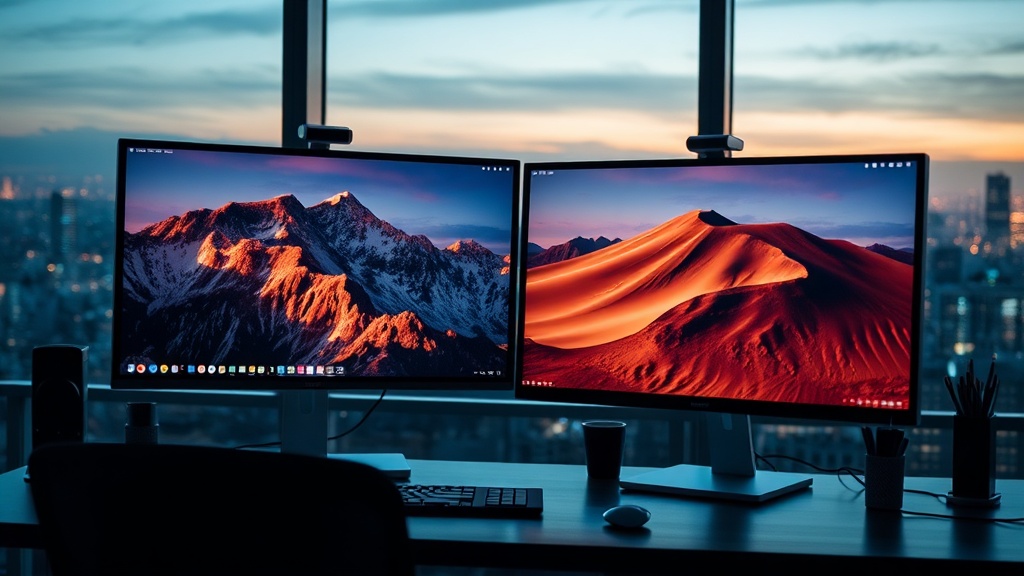
Why You Should Use a Second Monitor for Studying

Quick Tip
A second monitor reduces the time spent switching between tabs and keeps your main research visible at all times.
The Myth of the Single Screen
Many students believe that a high-end laptop is sufficient for a productive study session, but relying on a single screen often creates a cognitive bottleneck. When you are forced to constantly toggle between tabs—switching from a JSTOR research paper to a Google Doc, for example—you aren't just wasting time; you are actively fracturing your focus. A second monitor transforms your workspace from a simple device into a functional command center, allowing for seamless multitasking and deeper concentration.
Minimize the "Alt-Tab" Fatigue
The primary benefit of a dual-monitor setup is the elimination of constant window switching. This "Alt-Tab" cycle is a major source of micro-distractions that can derail a deep work session. With two screens, you can establish a logical workflow:
- Primary Monitor: Reserved for your active production tool, such as Microsoft Word, Scrivener, or your coding IDE.
- Secondary Monitor: Dedicated to reference materials, such as digital textbooks, lecture slides, or a YouTube tutorial.
By keeping your source material visible at all times, you reduce the mental load required to retain information. You no longer have to memorize a specific sentence or data point while you switch windows to type it out; you simply look to the side.
Optimize Your Digital Workflow
To get the most out of this setup, you need to treat your screens as distinct environments. If you are working on a heavy research project, use a browser extension like Picture-in-Picture to keep a video lecture playing in a small window on your second screen while you take notes on the first. This is particularly effective when you are studying for specialized certifications or learning new software via platforms like Coursera.
If you are working from a cramped dorm room, you don't necessarily need a massive 27-inch desktop monitor. A portable monitor, such as those made by ASUS or ViewSonic, can clip onto your laptop or sit beside it, providing extra real estate without taking up your entire desk. This setup is also a massive upgrade when you are finding the best study spots on campus, as it allows you to turn a small library carrel into a high-functioning workstation.
Practical Setup Tips
- Align your eyes: Place the second monitor at the same height as your laptop screen to prevent neck strain. Use a laptop riser or a stack of textbooks to level the playing field.
- Manage your clutter: Use a tool like Magnet (for Mac) or FancyZones (part of Microsoft PowerToys) to snap windows into specific quadrants.
- Control your light: If you are studying late in a darkened room, ensure your monitor brightness is adjusted to avoid eye fatigue.